Tuesday, 5 April 2011

Create Windows 7 System Image for Full Backup and Restoration

Method 1: Click the Windows 7 Start Menu orb button and type backup at the Search programs and files bar. You should see Backup and Restore appear in Programs.
Method 2: Click the Windows 7 Start Menu > All Programs > Maintenance > Backup and Restore
Method 3: Type this at the run (WIN+R) window %SystemRoot%\System32\control.exe /name Microsoft.BackupAndRestore
Method 4: Type this at the run (WIN+R) window %SystemRoot%\System32\sddt.exe
Method 5: Control Panel > Backup and Restore (Large icons or Small icons view)
Method 6: Control Panel > Back up your computer at System and Security (Category view)
After running Backup and Restore tool, click Create a system image from the right pane. The full command line to directly access the Create a system image is %SystemRoot%\System32\sddt.exe /BLBBACKUPWIZARD.
You can either backup to a different hard drive partition or to DVD disc. For on a hard drive, external hard drive or even a USB flash drive is supported but mapped network drive doesn’t. At the final confirmation, the Backup and Restore tool will tell you how much space it would take to create the backup and clicking the Start backup button will start the backup process.
There are 3 ways to restore back your computer using the backup image that you created.
Method 1: From Control Panel with Small or Large icons view, run Recovery. Click Advanced Recovery methods, and select the first option that says “Use a system image you created earlier to recover your computer“. If you have files to backup, then click Back up now or else click Skip. Click the Restart button which will reboot your computer and follow the steps.
Method 2: This is useful when Windows cannot start up. Turn on your computer and start tapping F8 key. Select Repair your computer on the Advanced Boot Options, select keyboard layout, select username and type the user’s password if there is one. Then finally on the System Recovery Options menu, click System Image Recover and follow the instructions.
Method 3: It is also possible that the boot sector or master boot record gets corrupted and you won’t be able to press F8 to go to Advanced Boot Options. You will need to start the computer with a Windows 7 system repair disc which can be created in a working Windows 7.

How to Subnet a Network

A properly designed subnet can do wonders for the security and performance of a network. The main idea in subnetting is to divide a network into smaller pieces, which we call subnets. Actually implementing a subnet is typically more difficult than simply using the default subnet mask of 255.255.255.0. This usually means that temporary or smaller networks do not need to be subnetted.
Security sees benefit since the IP addresses of the host computers on each subnet are masked by the network address- which means they are invisible to the outside world. We call this network address translation, or NAT. This same technique helps conserve IP addresses, since all hosts on the subnet essentially just use the network IP address during communication.

A Basic Review on Subnetting

If you’re a little rusty on the basics of subnetting, don’t worry. We’ll cover everything you need to know from beginning to end. First thing first: we need to learn about the IP basics.
The current version of internet protocol, or IP, is IP version 4. This IP version allows four octets of data to represent an IP address. Each octet is considered to be a byte, so there are 8 bits in every octet. Note that in binary form you can see that there are 8 numbers, each one consisting of a bit. Finally, each octet is separated by a period, as shown below.
subnet
Each IP address is usually represented in decimal form, as seen above as “192.168.2.1”. However, each IP address is actually used by computers in binary form. You may have noticed a huge flaw in IP version 4: the amount of unique IP addresses is limited! To be exact, only 4,294,967,296 unique IP addresses can be created. This may seem like a large number but keep in mind every single device in the world needs a unique IP address to communicate with one another while online.
The IP version 6 protocol was created for when the transition is needed. Most computers don’t use IPv6 just yet, but in the future it will inevitably be used. (In case you were wondering, IPv6 will support 2^128 unique IP addresses… egad!)

Classes

There are three main types of classifications of IP addresses in IPv4: class A, class B, and class C. There are class D and class E types, but those are for multicasting and private uses, respectively. Each class differs by the number of network and host octets it has. Each network octet is for classifying which network a host is on. More network octets will mean more networks! Likewise, each host octet specifies a host that can be assigned to the network. More host octets means more computers per network.
Each class has a certain range that the first octet can be assigned to. This lets us know to what network class any IP belongs to with ease. Review the diagram below to see a visual diagram.
how to subnet
Now the bad news: you must memorize each range for each class if you hope to pass most network exams. Don’t worry! It’s actually easy- just memorize how we get the numbers, not the numbers themselves! All you have to do is remember n^8 (read as “n” to the eighth power), and how many network portions each class has. Review the diagram below.
subnetting a network
One final note before we move on. Notice how we didn’t use the IP address 127 for the class A network- that’s because this is loopback address. We use this for testing configurations on the IP network. Also take note that there are reserved IP addresses, such as those for private networks. These IP addresses will not connect to the internet, which is handy if you just want computers to be connected with each other- and not the whole world.

Subnet Masks

A subnet mask is what we use to assign different amounts of networks and hosts to an IP network. It essentially divides the IP address into two parts: the network and host. This is a trading game- the more hosts you have, the fewer networks you will have. And yet the more networks you have, the fewer hosts you will have. Review the class A default subnet masks as shown below.
class a subnet
The class B network will need to recognize two network portions, and two host portions. This can be seen in the below diagram.
class b subnet
Lastly, we have the class C subnet. It is the most commonly used subnet, so pay special attention to it in the upcoming lecture. You can see a diagram of the default subnet below.
class c subnet

We’ve laid Down the Foundation, Let’s Build the House!

We just reviewed the basics of IP addresses and subnet masks. The bad news is, we usually don’t use the default subnet mask at all when we subnet a network! The good news is, learning how to subnet isn’t too hard. It will, however, take some practice.

An Example of Subnetting a Class C Network

Subnetting varies in difficulty, depending on which class you are subnetting. More often than not, you will need to create a subnet for a class C network. A class C network allows for many networks to be created, but not as many hosts. In fact, you can create a hefty 2,097,152 networks- but only 254 hosts per network are allowed.
Let’s say we are subnetting a school’s network. We need 5 separate networks that have 30 computers on each subnet.
First we calculate how many usable subnets we need. Next we will need to determine how many hosts are required. Both of these values can be calculated with the following equations:
Two Important Equations to Remember:

  • 1. Usable Subnets = (2^n) – 2 , where N = power of bits assigned
  • 2. Usable Hosts = (2^n) – 2 , where N = power of bits remaining
Let’s start with usable subnets. Review the diagram below for a visual example.
subnet practice
If you are wondering what the “-2” part of the equation is for, this is how we account for the two addresses in each subnet we can’t use. We will review what these addresses are for more specifically later on. For now, let’s find out what our usable hosts are!
subnet solutions

Alright Already! What’s My Subnet Mask?!

Getting your subnet mask at this point is incredibly easy. Simply take all of your network bits, and add them up. Look at the diagram below for a visual guide.
subnet mask
That’s it! You’re done. You have successfully created a subnet mask that can be used on the school’s network. Keep in mind that every computer must have the subnet mask set in order for them to be on the same network. Also note that since we are using a class C network, the first three octets will always be 255. When subnetting other classes, be sure to keep the network portions in mind.

Closing Comments

Subnetting may not be fun, but it is required for students to know on networking exams. That means you should stay away from subnet calculators until you have grasped the full concept of how to do it yourself. These calculators should only be used as a time saving tool, not a learning tool or way to cheat on homework.
With enough practice, subnetting will become much easier. Class A and Class B networks are a bit trickier, but follow the same example as shown above and it should be quite easy to accomplish.
Popularity: 100% [?]

Practice the following website
http://faculty.valleycollege.net/rpowell/jscript/subnet2.htm

How to Resize Disk Partition in Windows 7

Similar to Windows Vista, Windows 7 also has the option to resize partitions, this means you can shrink or extend partitions. The Disk Management in built utility is able to do the job of shrinking and expanding partitions and it does not require any 3rd party utilities. To manage your partitions, open Control Panel and type “partitions” or “hard disk” in the search bar on the right corner and you can see the link “Create and Format Hard Disk Partitions” under administrative tools.
partitions
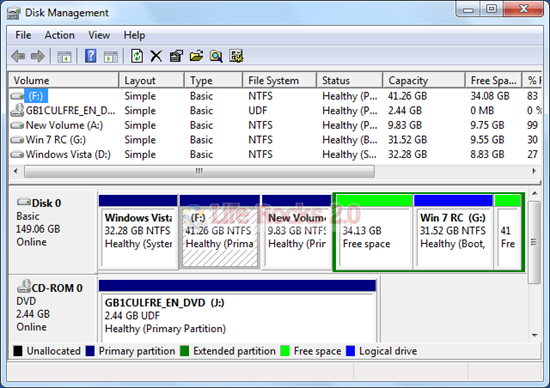
This will open up the disk management utility for Windows 7.
Disk Management
To shrink any volume, right click on the desired volume and select the option “Shrink Volume”. This will open up the Shrink Volume window and you need to specify the amount of space you want to shrink.
Shrink Volume
If you want to extend any volume in Windows 7, right click on the drive to be extended and select “Extend Volume”. In the next step you need to specify the amount of space by which you want to extend the volume.
extend volume
Please note that extend volume for any drive will work only if there is continuous free space available on your hard disk.

Wednesday, 9 March 2011

MDT 2010 Custom Image tested and 100% working

Hi

First Thanks a lot to AUGUSTO ALVAREZ for this work,it's great for a clean image. However for a custom image I came across some issues that took me some hours of troubleshooting.

without further do lets get to Microsoft Deployment Tool 2010 Steps.


First step before deploying the custom image:

  • Add the operating system you wish to deploy
  • Add any out-of-box device drivers needed for installing the operating system on the target computers
  • Add any applications you want to install on the target computers during the install
  • Add any packages such as hotfixes or security updates you want to install on the target computers during the install
For simplicity we are only going to add an operating system (Windows 7 Ultimate ) to the deployment share, packages and applications to deployment shares.
To add an operating system, right-click on the Operating Systems node in the deployment share and select Import Operating System. This starts the Import Operating System Wizard. On the first page of the wizard, specify that you want to import a full set of source files (Figure 8):

Once you have created your deployment share, you need to configure it as follows:
  • Add the operating system you wish to deploy
  • Add any out-of-box device drivers needed for installing the operating system on the target computers
  • Add any applications you want to install on the target computers during the install
  • Add any packages such as hotfixes or security updates you want to install on the target computers during the install
For simplicity we are only going to add an operating system (Windows 7 Enterprise) to the deployment share. In future articles we will examine how to add drivers, packages and applications to deployment shares.
To add an operating system, right-click on the Operating Systems node in the deployment share and select Import Operating System. This starts the Import Operating System Wizard. On the first page of the wizard, specify that you want to import a full set of source files (Figure 8):


Creating a Deployment Share

Open the Deployment Workbench on your technician computer, then right-click on the Deployment Shares node and select New Deployment Share. The New Deployment Share wizard starts. Click the Browse button and create a folder named DeploymentShare$ in the root of your disk volume as shown in Figure 1:

Figure 1: Specify the name and path to the deployment share folder
Click Next and the share name will automatically be populated and the UNC path to the share will be displayed (Figure 2):

Figure 2: The share name and UNC path for the deployment share are displayed
Click Next and give your deployment share a descriptive name (Figure 3):

Figure 3: Name the deployment share
Click Next and choose whether you want to be able to capture an image after deploying it to a computer (Figure 4). We will leave this option enabled so we can use it if we deploy a reference (master) computer and capture its image for deployment onto multiple target (end-user) computers:
(ignore do not  tick "Ask if an image should be captured")

Figure 4: Specify whether the option to capture an image will be displayed when the Windows Deployment Wizard runs during an install
Click Next and specify whether the user should be allowed to set the password for the local Administrator account on their computer (Figure 5). We'll leave this option unchecked:

Figure 5: The Allow Admin Password option
Click Next and specify whether the user should be asked to enter a product key (Figure 6). We will leave this unchecked because we are deploying Windows 7 Enterprise, which means that activation is typically performed using Key Management Service (KMS):

Figure 6: Choose whether the user is prompted to enter a product key during the install
Now finish the wizard and review the Confirmation page to ensure everything was done as expected. Figure 7 shows the newly created deployment share and its folder structure in the Deployment Workbench:

Figure 7: The newly created deployment share

Now you are ready to import the custom image.


Importing the Captured Image into MDT 2010

 Once the image has been captured, the importation process is simpler:
1. Open the MDT Console, expand the MDT Deployment Share, right-click “Operating Systems” and select “Import Operating System”.
mdt25
2. Select “Custom image file” and click on “Next”.
mdt26
3. Specify the path of the captured WIM file and click on “Next”. Also I’m selecting the option “Move the files to the deployment share…” to optimize disk space.
mdt27
4. Select “Setup and Sysprep files are not needed” and click on “Next”. Since we’ve already prepared this operating system, there’s no need to include these files.
mdt28
5. Specify the name for the destination folder and click on “Next”. In my case, I’m using “Windows 7 Pro x64 + Office 2010”.
mdt29
6. In the summary page click on “Next”.
7. And in confirmation click on “Finish”.
mdt31
With that, the operating system is imported to MDT 2010.
mdt32

Creating the Task Sequence for Deployment

We now have the customized operating system imported into MDT, now we just need to create the Task Sequence to deploy it. The procedure is even simpler and we should now be familiarized with the environment to complete it without any problem.
1. Right-click “Task Sequences” and select “New Task Sequence”.
mdt34
2. Complete the Task Sequence data. Remember to use a different “Task sequence ID” than the selected earlier, in my case “WIN7OFFICE2010”.
mdt35
3. Select “Standard Client Task Sequence” and click on “Next”.
4. Select the operating system we’ve imported “Windows 7 Pro x64 + Office 2010” (I’ve changed the name for a more friendly one). Click on “Next”.
mdt37
5. You can specify the product key in this step. Click on “Next”.
mdt38
6. Complete the “OS Settings” and click on “Next”.
7. Specify the Administrator password or you can skip it. The administrator password set (if we did it) in the image we’ve captured maintains even if we executed sysprep. Click on “Next”.
mdt41
8. Review the “Summary” and again the process should take a few seconds, once its completed click on “Finish”.

Deploying the Reference Image

We have completed all the configuration steps, and the only thing missing is deploying this image to the client.
1. In a client machine, boot from the network and select the LiteTouchPE boot image we’ve added earlier.
2. Run the “Deployment Wizard” in the same way we’ve executed before.
mdt43
3. Specify credentials. Click on “Next”.
4. Select the task sequence to deploy the reference image, in my case “Deploy Windows 7 x64 + Office 2010”. Click on “Next”.
mdt45
5. Join the machine to the domain if you prefer to. Click on “Next”.
mdt46
6. Since we are not migrating profiles, select “Do not restore user data and settings”. Click on “Next”.
7. Select Language and Time Zone. Click on “Next”.
8. Since the image already has Microsoft Office 2010 installed, there’s no need to install it again. Click on “Next”.
mdt50
9. Click on “Begin” and the installation process will start.
mdt51
The operating system will complete its installation in a few minutes.
mdt53
With that we’ve completed the third part of this series, I’m hoping I’ll prepare a few more about automating even more the deployments and add a few more features in the scenario.
I hope you found this useful.